
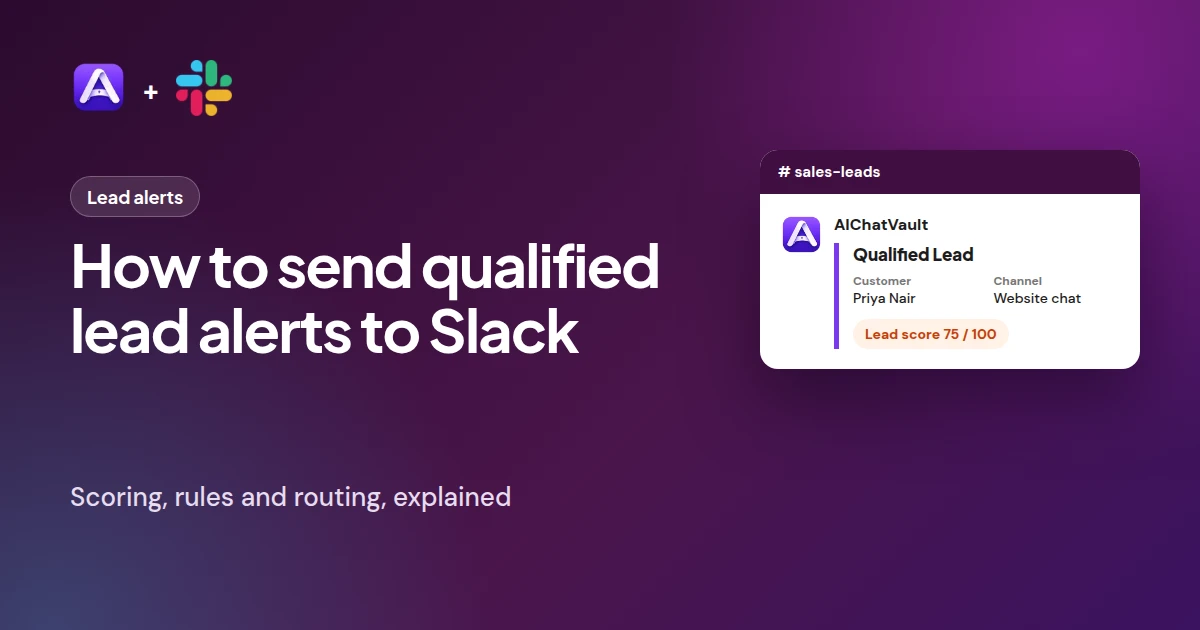
A lead is easiest to win while they are still on your site, still thinking about your product. The problem is that most leads sit unnoticed in a list until someone checks it. Sending a qualified-lead alert to Slack puts the lead in front of the people who can act on it, the moment it happens.
This guide explains how AIChatVault decides that a lead is "qualified", how to set up the alert, how to route alerts to the right team, and how to avoid drowning your channel in noise. If you have not connected Slack yet, start with How to Connect AIChatVault to Slack.
How a lead reaches Slack
- A customer talks to your chatbot on any connected channel: website chat, WhatsApp, Instagram, Messenger, email or Slack itself.
- Their details are captured. This happens through a lead form, or when the chatbot asks for a name and email in conversation.
- AIChatVault scores the lead from 0 to 100, based on the details captured and how the conversation went.
- Each Qualified lead rule checks the score against its own minimum. If the score reaches the minimum, the alert is posted in that rule's channel.
Because the score is calculated in one place, a lead from WhatsApp and a lead from your website are judged by exactly the same rules.
How lead scoring works
The score is deliberately simple and explainable. Every signal adds a fixed number of points, and the total is capped at 100.
| Signal | Points | What counts |
|---|---|---|
| Email address | 25 | A valid email address |
| Phone number | 20 | A number with at least seven digits |
| Name | 10 | Any name |
| Company | 10 | Any company name |
| A real message | 10 | A message of at least 40 characters |
| Buying intent | 15 | Words such as price, pricing, cost, quote, demo, trial, buy, purchase, order, enterprise, integration, booking, appointment, meeting, call back, proposal, contract, invoice, urgent, bulk, wholesale or partnership |
| Asked for a person | 10 | The conversation was handed to your team |
| Engaged conversation | 5 | At least three messages from the customer |
Contact details carry the most weight because they decide whether you can follow up at all. Intent and engagement add confidence that the lead is serious.
Worked examples
| Lead | Score | Alert at the default minimum of 50? |
|---|---|---|
| Email only | 25 | No |
| Name and email | 35 | No |
| Name, email and phone | 55 | Yes |
| Name and email, message "Can I get a quote for 50 seats?" | 50 (25 + 10 + 15) | Yes |
| Name, email, company, and a longer message asking about pricing | 70 (25 + 10 + 10 + 10 + 15) | Yes |
| All of the above, asked for a person, and chatted for several messages | 100 (capped) | Yes |
Choosing your minimum score
The minimum is set per rule, from 0 to 100. The default is 50.
- 30 to 40. Almost every lead with a name and an email will alert. Good when you have few leads and want to see all of them.
- 50 (default). Contact details plus a second signal: a phone number, clear buying intent or a real message. A good balance for most teams.
- 70 and above. Only strong leads: several contact details, intent and a real conversation. Use this when your team is small or your lead volume is high.
Start at 50, watch the alerts for a week and adjust. If your team is ignoring the channel, raise the minimum. If you are hearing about good leads late, lower it.
Step by step: create a Qualified lead rule
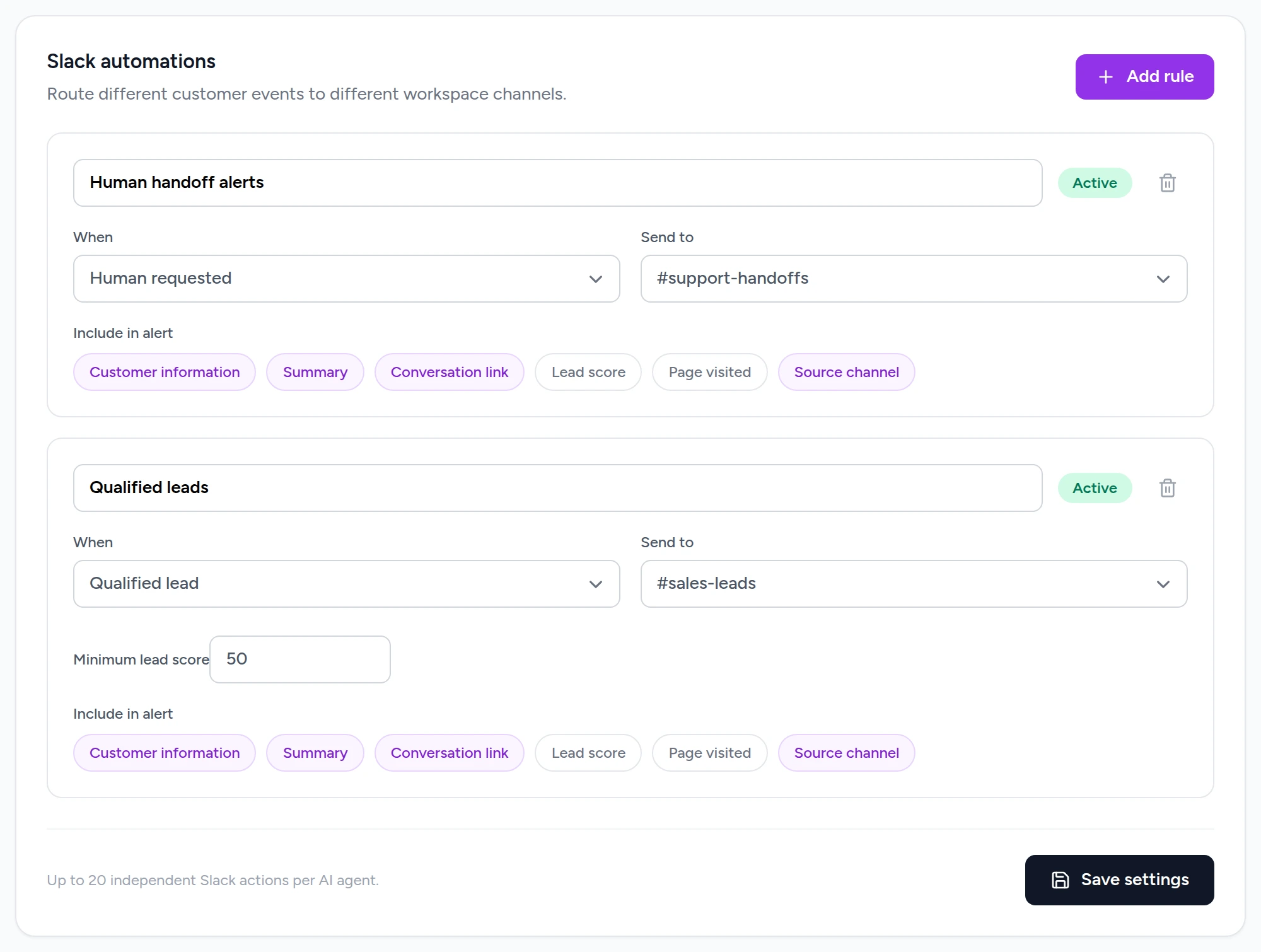
- Open your chatbot, choose Integrations in the sidebar, then Manage on the Slack card.
- Click Add rule.
- Give it a clear Name, such as "Qualified leads".
- Set When to Qualified lead.
- Choose the Send to channel, for example
#sales-leads. For a private channel, add the bot first with/invite @AIChatVault. - Set the Minimum lead score.
- Choose what to Include in alert (see below).
- Click Save settings, then Send rich test from the default channel section to check the layout.
What the alert shows
You choose which details each alert contains by switching the "Include in alert" chips on or off.
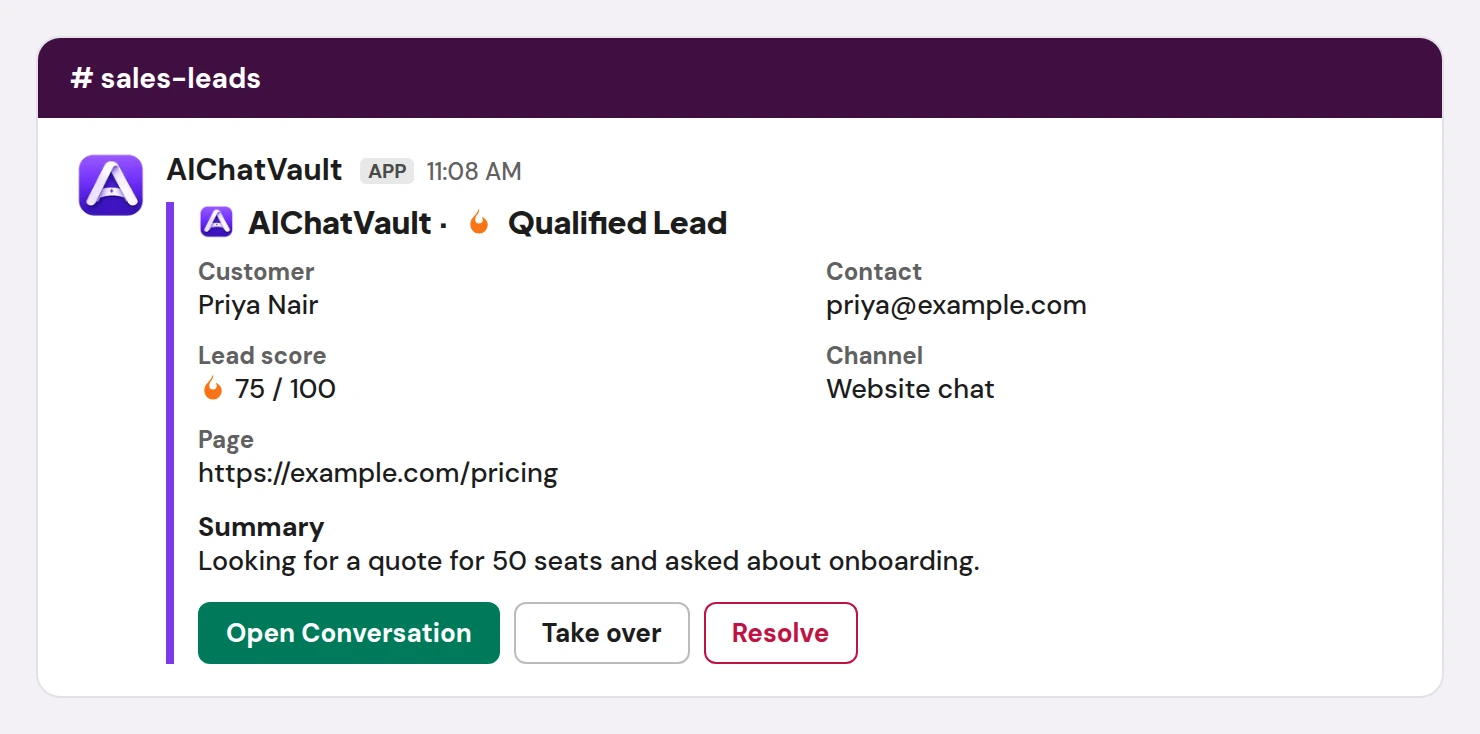
- Customer information. The customer's name and their email or phone number.
- Lead score. The score out of 100, so the team can prioritise.
- Source channel. Where the conversation happened: website chat, WhatsApp, Instagram, Messenger, email or Slack.
- Page visited. The page the customer was on, when it is known. Useful for knowing which product or pricing page triggered the interest.
- Summary. A short line describing the lead, taken from the conversation or the message they left.
- Conversation link. The Open Conversation button, which takes your team straight to the full conversation in the AIChatVault Inbox.
Routing alerts to the right people
Rules are independent, so you can build a routing scheme that matches your team.
- One channel per team. Qualified leads to
#sales-leads, handoff requests to#support-handoffs. - One chatbot per brand or region. Each chatbot connects its own rules, so a UK chatbot and a Gulf chatbot can alert different channels.
- A companion handoff rule. Add a second rule with When: Human requested, so customers who ask for a person are never missed even if their lead score is low.
Two thresholds for one event
You can create two Qualified lead rules with different minimums, for example 40 to #all-leads and 75 to #hot-leads. Keep in mind that every rule whose minimum is met will fire, so a lead scoring 80 will appear in both channels. That is often what you want: a quiet channel with everything, and a loud one with only the best. If it is not, use a single rule.
Acting on the alert
- Open Conversation shows the whole conversation and contact details in the Inbox.
- Take over marks the conversation as yours and shows who has it in the alert, so nobody else picks up the same lead. While you have it, the AI does not answer that conversation.
- Resolve closes it when the follow-up is done.
- Replying to a lead who started in Slack can be done straight from the alert. For leads from other channels, reply from the Inbox; the Slack alert follows along.
Keeping alerts useful
- No repeats. The same conversation raises a lead alert once every six hours per rule, so a chatty customer does not flood the channel.
- Use dedicated channels. Mixing lead alerts with general chat buries them. A single-purpose channel stays readable and easy to mute or review.
- Review weekly. Look at which alerts led to a real conversation and adjust the minimum score.
- Pause, don't delete. Each rule has an Active button. Click it to pause the rule (it then reads Paused) and click it again to bring the rule back. Remember to click Save settings.
- Agree who responds. Decide who watches the channel and how quickly, and use Take over so the rest of the team knows it is handled.
Troubleshooting
A lead did not trigger an alert
- Check its score. A lead with only a name and an email scores 35, which is below the default minimum of 50.
- Check the rule is Active, set to Qualified lead, and pointing at the channel you are watching.
- For a private channel, make sure the bot has been added to it.
- Check the integration is not paused and that you clicked Save settings after changing a rule.
- The same conversation only alerts once every six hours per rule.
Too many alerts
Raise the minimum score, or turn off the "Include" details you do not need so alerts are shorter. Consider routing low-priority leads to a quieter channel.
The score looks too low
Scores only reflect what has been captured. A lead who gave a name but no email or phone scores low. Make sure your lead form or chatbot asks for an email address, and a phone number if you want to phone leads.
Next steps
- Set up your first rule today. It takes a few minutes: connect Slack and add a Qualified lead rule.
- Read about the whole integration on the Slack integration page.
- Learn how handoffs work in the human handoff documentation.
- Not an AIChatVault customer yet? Start for free.