
Slack is where your team already talks, decides and hands work over. Connecting it to AIChatVault means three things can happen without anyone switching tabs: people can ask your chatbot questions in Slack, your team gets an alert when a lead is ready or a customer needs a person, and a teammate can take ownership of that conversation straight from the alert.
This guide walks through the whole setup, from the first click to a tested handoff. It takes about ten minutes.
What you will have at the end
- AI answers in Slack. Mention the bot in a channel, or message it directly. It answers from the knowledge base of the chatbot you connect.
- Alerts in the right channel. Qualified-lead alerts and human-handoff alerts, routed by rules you control.
- Action buttons. Take over, open the conversation or resolve it from the alert, with the shared inbox kept in step.
If you would like the overview before you start, see the Slack integration page.
Before you start
- A chatbot with some knowledge. The Slack bot answers from the same sources as your website chat: websites, documents and Q&A. If the chatbot is empty, add a few sources first.
- A Slack workspace where you can add apps. If your workspace requires approval for new apps, a Slack admin will need to approve the request when you connect.
- A rough channel plan. For example
#sales-leadsfor lead alerts and#support-handoffsfor customers who need a person. You can change this later.
One chatbot connects to one Slack workspace. If you run several chatbots, each one connects separately and can send its alerts to different channels.
Step 1: Open the Integrations page of your chatbot
Open the chatbot you want to connect and choose Integrations ("Channels & connections") in the left sidebar.
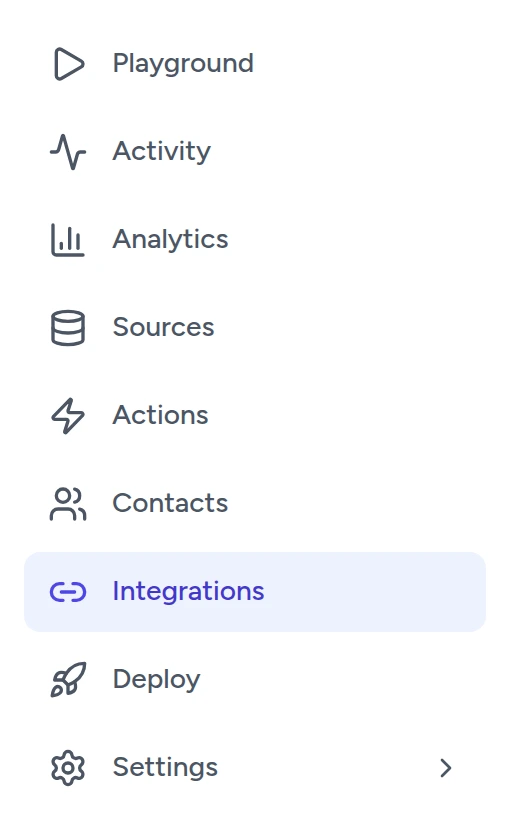
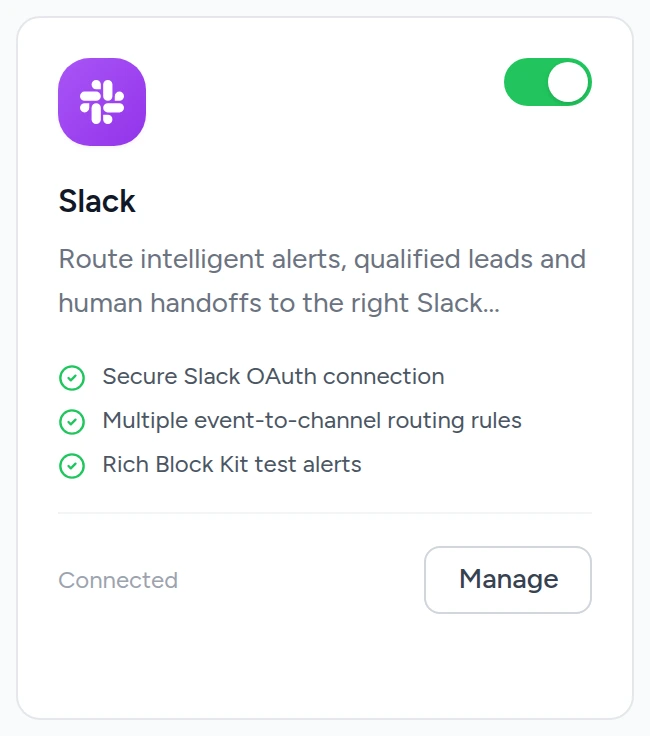
Find the Slack card in the list of available integrations. While Slack is not connected, its button reads Connect; once connected it reads Manage.
Step 2: Connect your Slack workspace
Click Connect. You are taken to Slack to approve the connection:
- Choose the workspace you want to connect. If you belong to several, use the workspace picker at the top right of the Slack page.
- Review the permissions Slack lists, then click Allow.
- You return to AIChatVault with a confirmation that the Slack workspace is connected.
AIChatVault never sees your Slack password. It receives an access token for the permissions you approved, stores it encrypted and uses it only for this chatbot. The permissions are limited to what the features need: seeing mentions and direct messages sent to the bot, posting messages, listing channels so you can choose where alerts go, and reading names. The full list of permissions and the security notes are in the documentation.
Step 3: Check the connection
The Slack page now shows your workspace, a Connected badge and three controls.
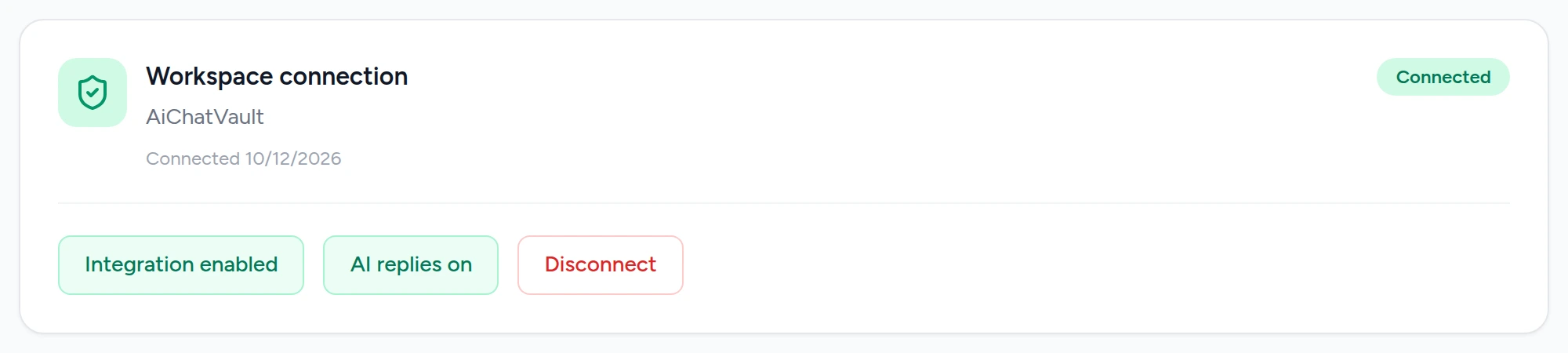
- Integration enabled / paused. Pauses everything. While paused, the bot does not answer and no alerts are sent.
- AI replies on / off. Controls whether the bot answers mentions and direct messages. Switch it off to keep your alerts but stop the answers.
- Disconnect. Removes the connection and its stored access token.
Tip: changes on this page, including the pause and AI replies switches, are applied when you click Save settings at the bottom. If the bot ever goes quiet, check that the button still reads "Integration enabled".
Step 4: Choose a default channel and send a test

The default channel is used for test alerts and as the starting channel when you add a new rule. Pick one from the list and click Send rich test. A sample alert should appear in that channel within a few seconds. If it does, the connection works.
If your channel is private, add the bot to it first (see Step 6) so that it can post there.
Step 5: Add your alert rules
A rule says: "when this happens, post an alert in that channel". Click Add rule and set:
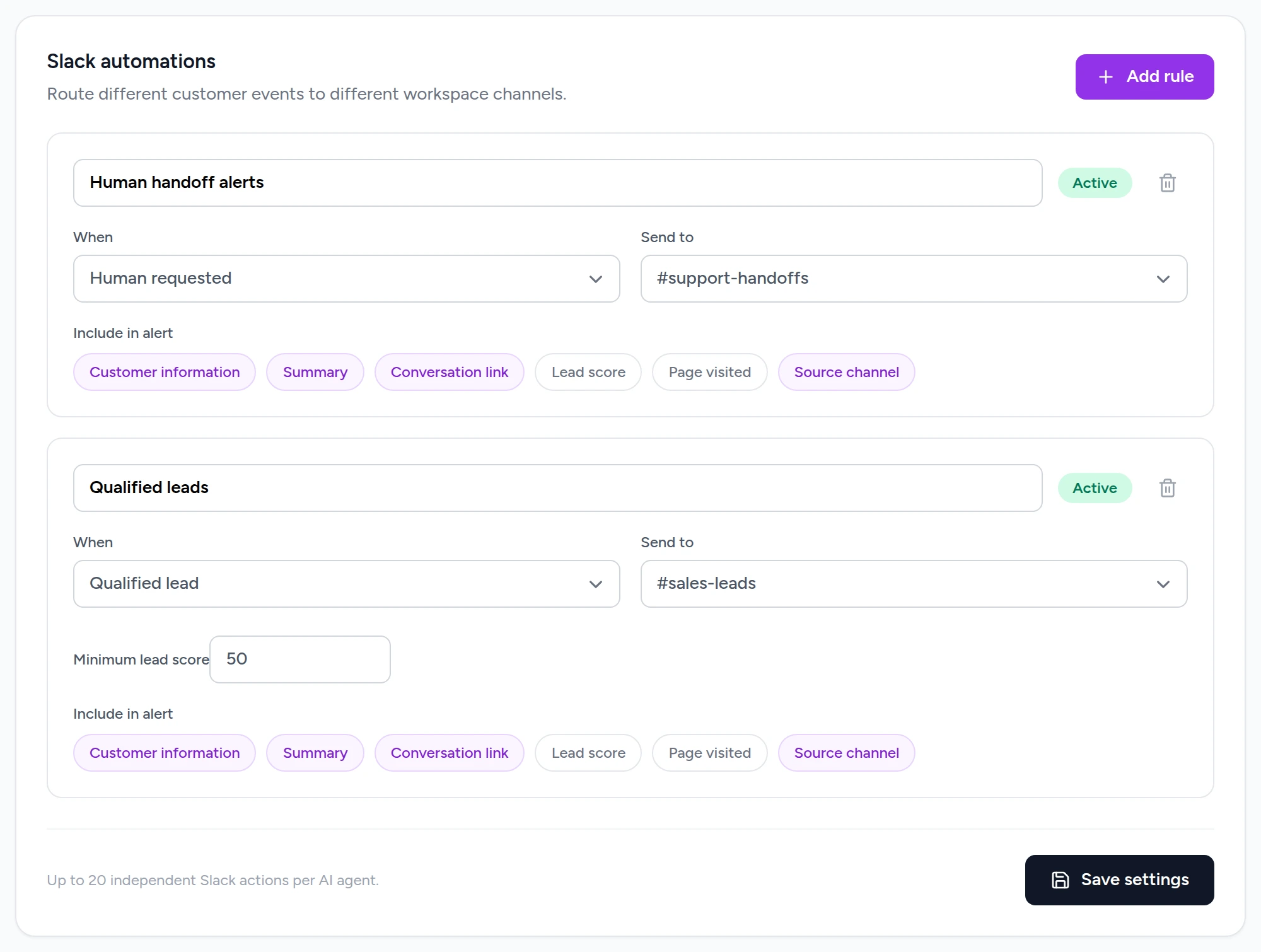
- Name. For your own reference, such as "Human handoff alerts".
- When. Human requested (a customer asks for a person) or Qualified lead (a lead reaches your minimum score).
- Send to. The Slack channel for this alert.
- Minimum lead score. Qualified lead rules only. The default is 50 out of 100.
- Include in alert. Customer information, summary, conversation link, lead score, page visited and source channel. Click a chip to switch it on or off.
You can add up to 20 rules per chatbot, so different events can go to different channels. Click Save settings when you have finished. For a closer look at how leads are scored and routed, read How to Send Qualified Lead Alerts to Slack.
Step 6: Invite the bot to your channels
Alerts can be posted to public channels without any extra step. For the bot to answer questions in a channel, and to post in a private channel, add it to that channel first. In the channel, type:
/invite @AIChatVaultand press Enter. The bot appears under the name of the Slack app, AIChatVault. You can also add it from the channel's settings, under Integrations.
Step 7: Ask the bot a question
Try both ways of talking to the bot.
In a channel
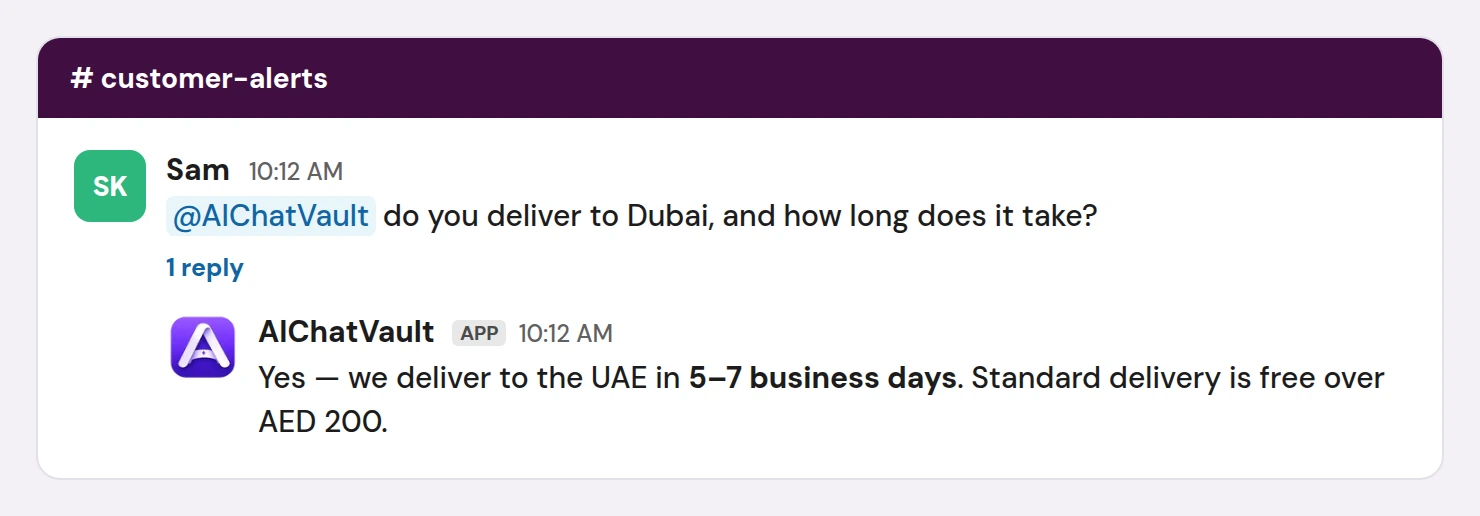
Mention the bot and ask your question, for example: @AIChatVault do you deliver to Dubai, and how long does it take? Pick the bot from the suggestion list when you type @, so that Slack treats it as a real mention. The answer arrives as a reply in a thread under your message, which keeps the channel tidy. Each thread is its own conversation, and the bot remembers what was said earlier in it.
In a direct message
Open the bot from the Apps section of Slack's sidebar and send it a message. The reply appears inline, and the conversation continues in the same direct-message window.
The bot answers from your chatbot's knowledge base. If the knowledge base does not contain the answer, it says so instead of inventing one, for example "I don't have that information in my knowledge base." That is your cue to add the missing content under your chatbot's Sources. It is not a Slack problem.
Each AI answer uses credits in the same way a website chat message does. Slack conversations also appear in your AIChatVault Inbox, labelled Slack.
Step 8: Test a handoff
In a direct message to the bot, ask for a person: connect me with a human. A clear request like this is handled straight away: the bot tells the customer a teammate has been notified, the AI stops answering that conversation, a lead is recorded, and your Human requested rule posts an alert.
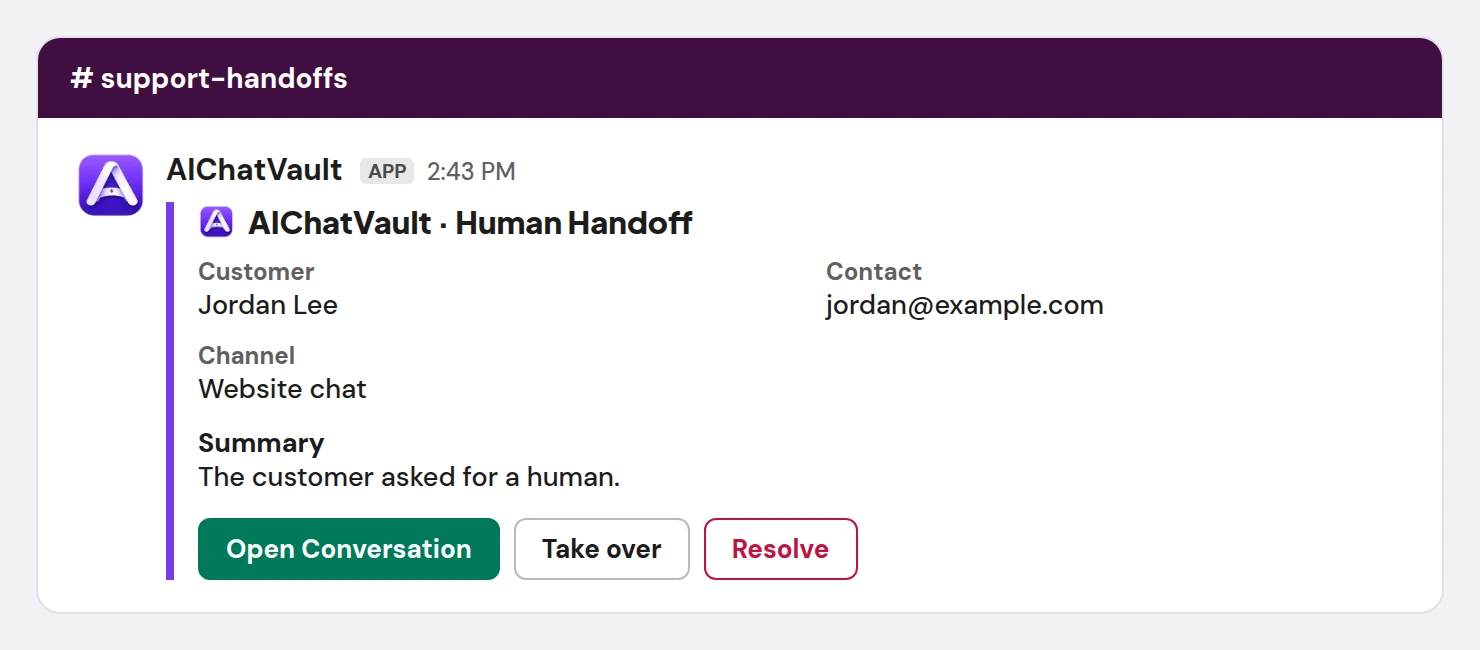
On the alert, your team can:
- Open Conversation. Opens it in the AIChatVault Inbox, with the full conversation and contact details.
- Take over. Marks the conversation as yours. The alert shows who took it.
- Resolve. Closes the handoff.
- Reply. Appears for conversations that started in Slack, so you can write back from Slack. Conversations from other channels, such as website chat or email, are answered from the Inbox.
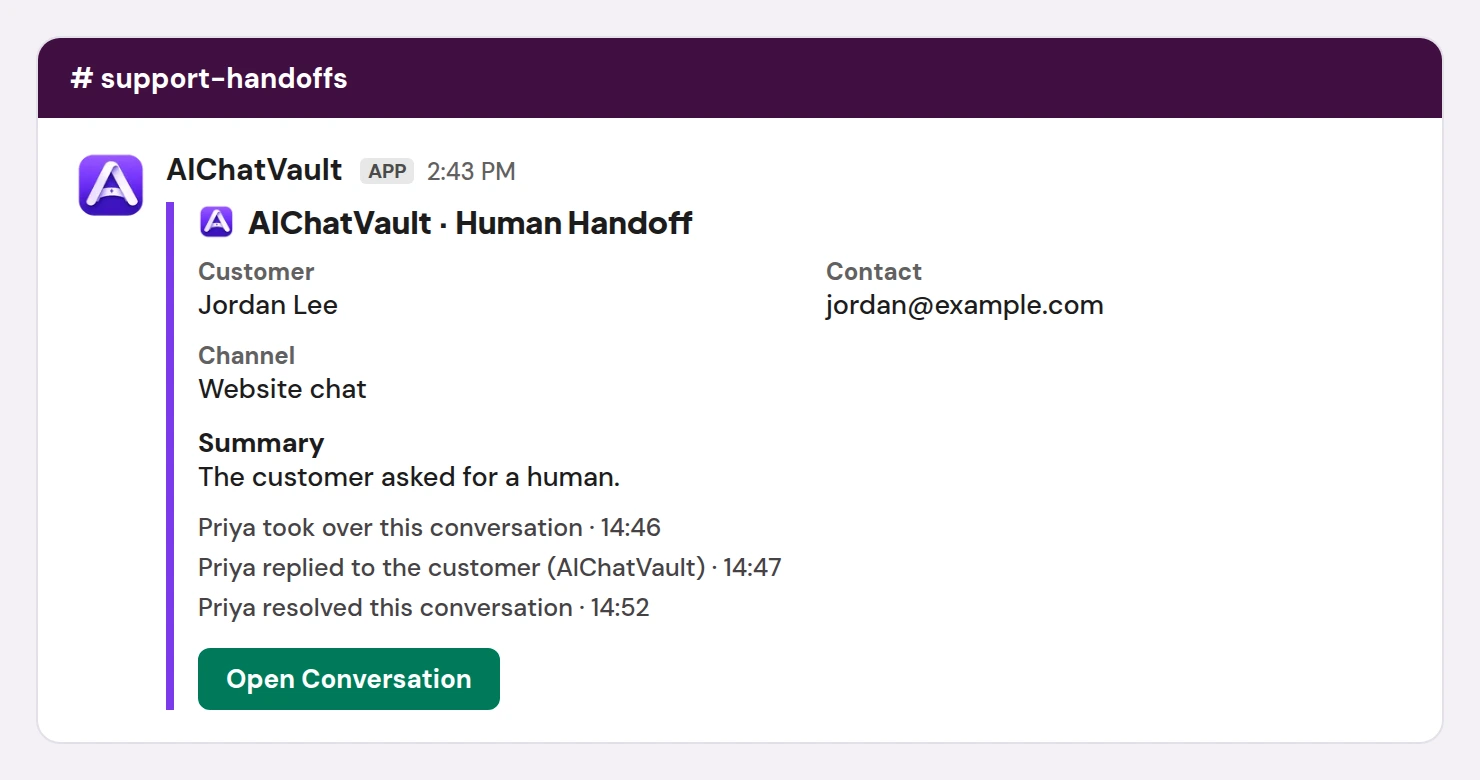
Slack and the Inbox always agree. Take over, reply or resolve in the Inbox and the Slack alert updates; reply in the Inbox to a conversation that started in Slack and your message is posted in the Slack thread.
Pause, switch off AI replies or disconnect
- Pause the integration when you want complete silence for a while. Click the button until it reads "Integration paused", then Save settings.
- Turn AI replies off to stop answers but keep alerts.
- Disconnect to remove the connection and stored token. You can also remove the app from your Slack workspace's settings at any time.
Troubleshooting
The bot does not answer in a channel
- Check the bot has been added to that channel (
/invite @AIChatVault). - Make sure you mentioned it with a real mention, chosen from the suggestion list, rather than typing the name as plain text.
- On the Slack page, check the buttons read Integration enabled and AI replies on.
The bot does not answer in a direct message
- Check the same two buttons.
- If your plan's monthly credits are used up, the bot replies that it cannot answer right now. Check your credits in the dashboard.
The answer is "I don't have that information in my knowledge base"
The question is not covered by your chatbot's sources. Add the missing page, document or Q&A, or ask a more specific question. The same question gets the same answer on your website chat.
No alert arrives
- Check the rule is Active and has the event and channel you expect.
- If the channel is private, add the bot to it.
- For Qualified lead rules, the lead's score may be below your minimum. See the lead alerts guide for how scores are calculated.
- The same conversation raises a lead alert once every six hours per rule, so repeated test leads from one conversation will not alert again straight away.
The test alert does not appear
Pick a different default channel, or add the bot to the channel you picked. If Slack reports that the connection is no longer valid, use Disconnect and then connect again.
What to do next
- Fine-tune who gets which alert in How to Send Qualified Lead Alerts to Slack.
- Read how handoffs are designed in the human handoff documentation.
- Keep the Slack setup guide handy for permissions and security details.
- New to AIChatVault? Create your chatbot and connect Slack in minutes.