
A chatbot that captures a lead and stores it nowhere is a missed opportunity. The entire value of conversational lead generation depends on what happens next — and what happens next is determined by your CRM integration. This guide covers how AI chatbots connect to CRM systems, what data flows where, and why the architecture matters.

Why CRM Integration Is Non-Negotiable
Consider what happens without integration:
- Lead captured by chatbot → stored in chatbot dashboard only
- Sales rep must manually export, check, and import leads
- Context from the conversation is lost
- No automated follow-up, no pipeline visibility, no attribution
With integration:
- Lead captured → immediately appears in CRM as a Contact or Lead record
- Conversation transcript attached as a note
- Sales rep notified instantly
- Automated nurture sequences triggered
- Full attribution: this lead came from the chatbot, on this page, via this conversation
What Data the Chatbot Passes to the CRM
A well-integrated chatbot syncs structured data, not just an email address. AIChatVault captures and syncs:
| Data Field | CRM Mapping |
|---|---|
| First name, last name | Contact: First Name, Last Name |
| Email address | Contact: Email (with duplicate check) |
| Phone number | Contact: Phone |
| Company name | Contact: Account / Company |
| Use case / interest | Lead: Description / Custom field |
| Lead source | Lead Source: AI Chatbot |
| Page URL of conversation | Custom field / Activity note |
| Full conversation transcript | Activity: Note |
| Marketing consent status | Contact: Email opt-in field |
Zoho CRM Integration: How It Works
AIChatVault's Zoho CRM integration uses OAuth 2.0 — you connect once via the integrations panel, and from that point every captured lead flows automatically.
The flow:
- User starts a conversation on your website
- Bot qualifies and captures: name, email, company, use case
- On lead capture, AIChatVault calls the Zoho CRM API
- Checks for an existing contact by email (deduplication)
- Creates a new Lead/Contact record or updates the existing one
- Attaches the conversation transcript as a Note on the record
- Triggers your Zoho CRM workflow (e.g. assign to sales rep, start drip sequence)
All of this happens in under 3 seconds of the lead being captured — by the time your rep gets the notification, the record is already in their CRM.
Lead Scoring From Conversation Data
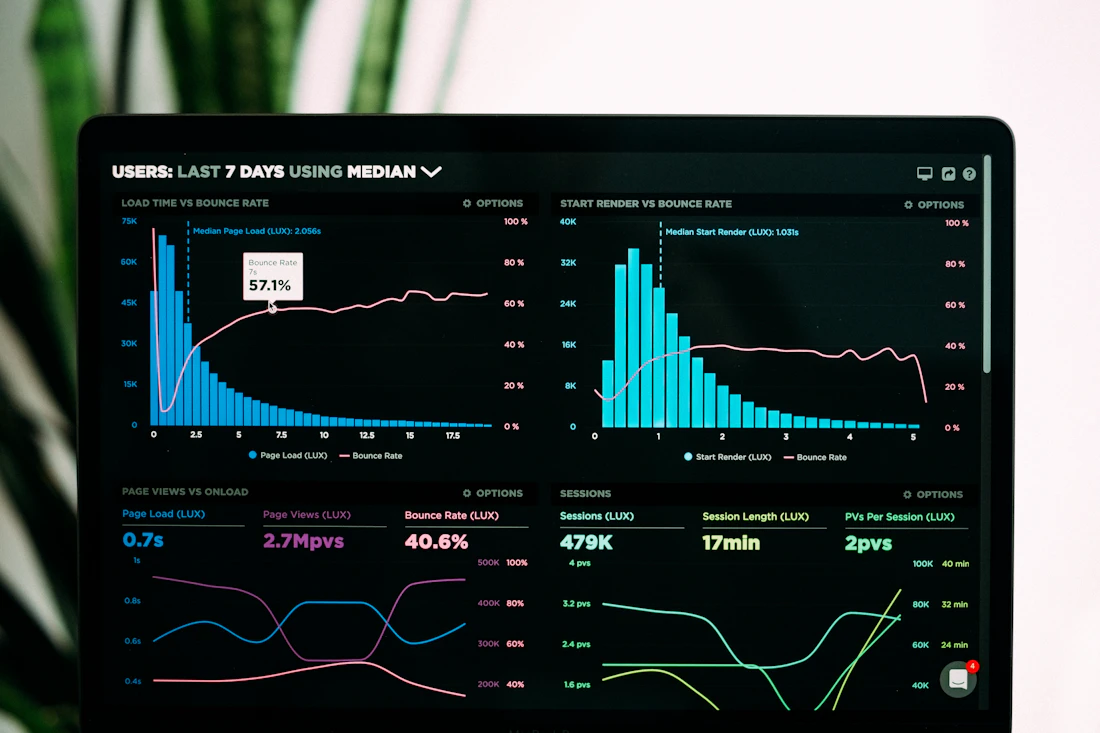
Chatbot conversations are rich with signals that help score lead quality. AIChatVault extracts these signals and can pass them to your CRM for automated scoring:
- Engagement depth — how many turns did the conversation have? More turns = more interest
- Qualifying responses — did they mention a budget? A timeline? A specific use case?
- Page context — a lead from the pricing page is warmer than one from the homepage
- Time on site — longer sessions before chatbot engagement signal higher intent
These signals map to custom fields in Zoho CRM and feed directly into your lead scoring model.
Preventing Duplicate Records
CRM databases fill with duplicates when integrations don't deduplicate. AIChatVault handles this with an email-hash lookup before every sync:
- Before creating a new record, query Zoho CRM for an existing Contact/Lead with the same email
- If found: update the record and add a new activity note for the latest conversation
- If not found: create a new record with all captured data
This means returning visitors are recognised and their CRM record enriched, not duplicated.
Beyond Zoho: Multi-CRM Support
AIChatVault connects to Zoho CRM natively, with Zoho Campaigns for email marketing and Zoho Desk for support ticket creation — covering the full Zoho ecosystem. The lead data captured by your chatbot becomes the foundation of your entire customer relationship from first touch through support resolution.
Setting Up CRM Integration in AIChatVault
- Go to your chatbot's Integrations panel
- Select Zoho CRM and click Connect
- Complete the OAuth flow — you'll be redirected to Zoho to authorise
- Configure field mapping — which chatbot fields map to which CRM fields
- Set trigger — sync on email capture, or on full lead qualification
- Test with a dummy conversation to confirm the record appears in Zoho correctly